

Setting Up the ASUS RT-BE50 WiFi7 Router Can All be Done on Your Mobile Device
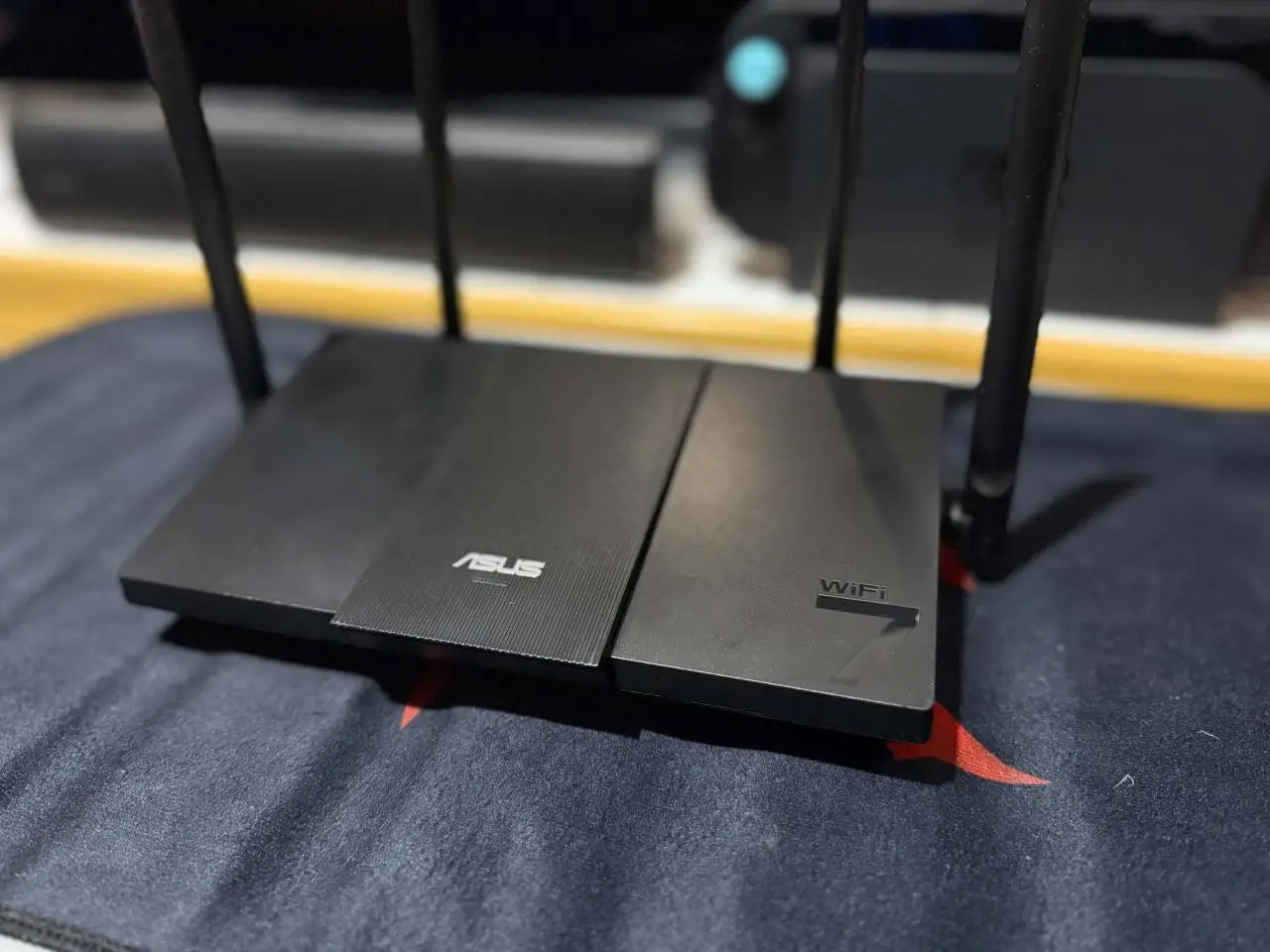
For non-techy people, setting up your home internet connection and router may be intimidating, especially when there are multiple terms and jargon to deal with. Thankfully, modern routers have much friendlier interfaces that allow users to simply control everything, from start to finish, and the ASUS RT-BE50 WiFi7 Router is one such device.
The ASUS RT-BE50 WiFi7 Router is a great option if you want to unlock the full potential of your WiFi connection at an extremely affordable price. WiFi7 is basically the latest standard, allowing for faster speeds, reduced lag, and an overall smoother network, all of which are important aspects for productivity, gaming, and media consumption. Plus, future-proofing is a good deal, since you’re jumping on the latest tech right as more devices adopt it.
ASUS RT-BE50 WiFi7 Router Setup
When you open the ASUS RT-BE50 WiFi7 Router box, you get a simple, no-frills package that includes a LAN cable to connect the Router to your ISP modem, a power adaptor, and the router itself. It looks sleek and doesn’t stand out from other devices in the living room, making it a good addition.
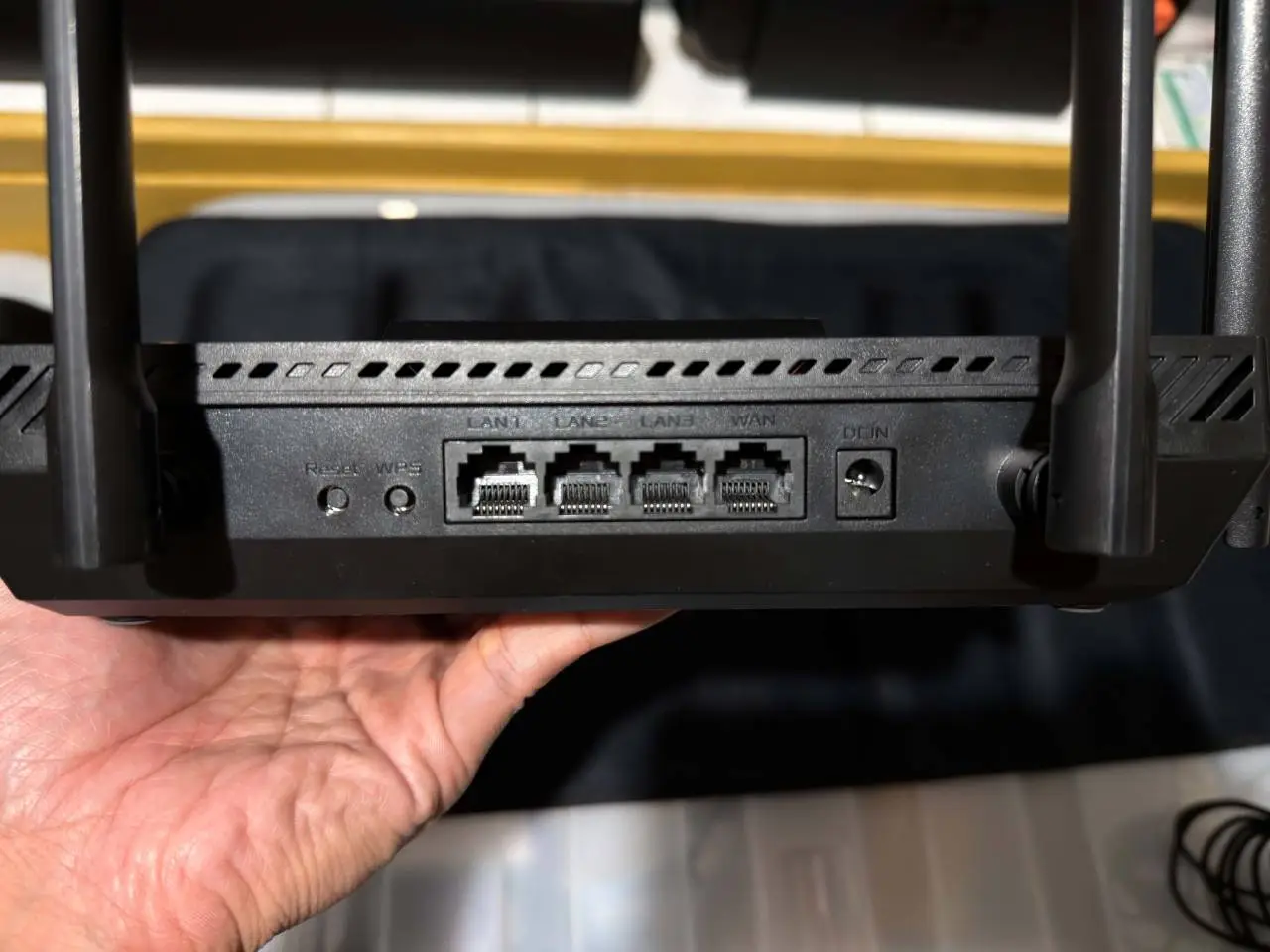
All the ports are on the back of the router: 1x 2.5G for WAN and 3x 1G for LAN, which is great if you have multiple devices you want to connect, like a PS5, a Switch 2, and a PC.
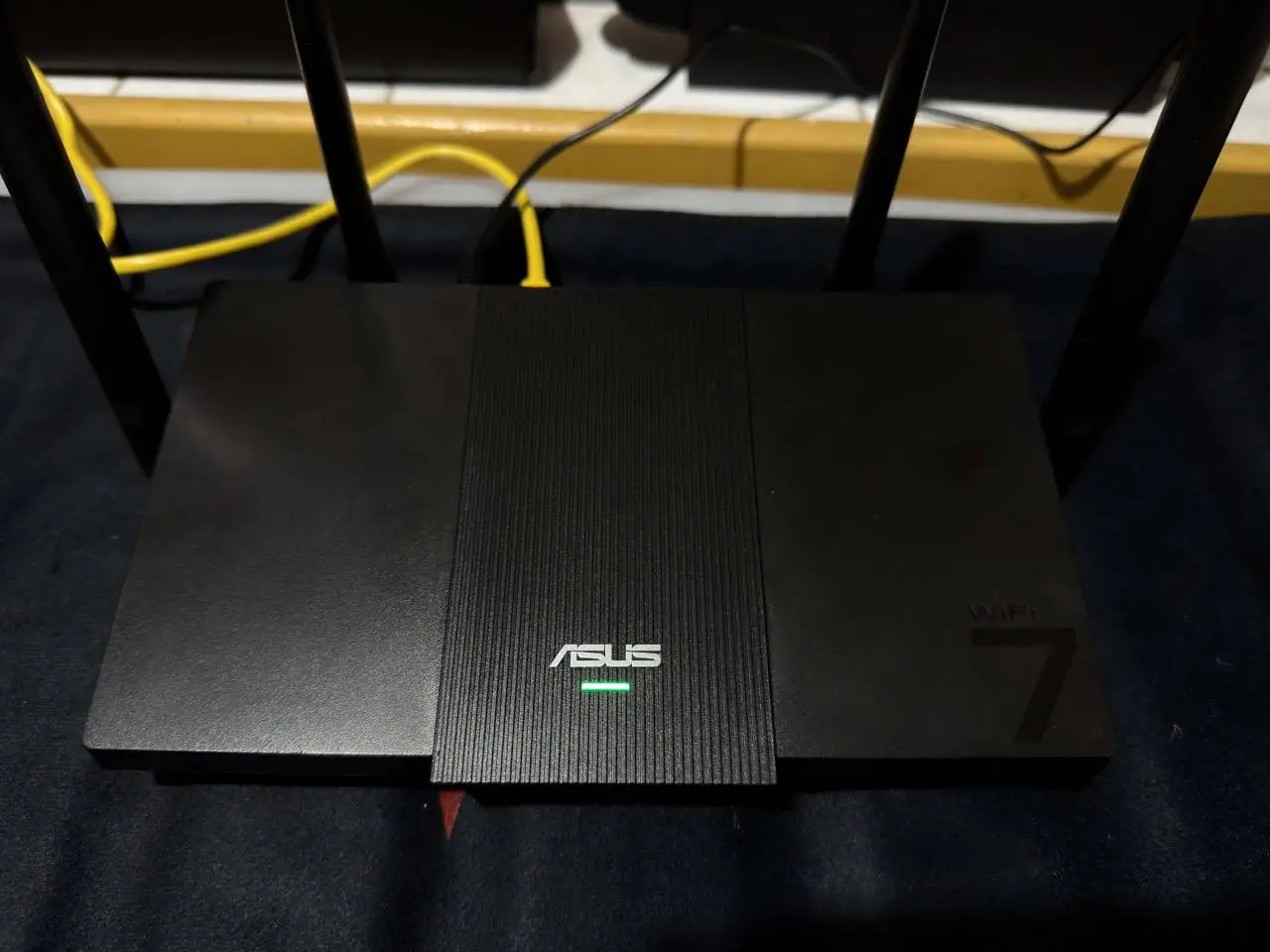
After you plug it in and connect it to the ISP modem, there’s literally nothing else to do: it powers up on its own and starts distributing the internet connection to devices that connect once the green light is visible. The ASUS RT-BE50 WiFi7 Router also comes with a QR code you can scan to connect to the network if you want to avoid the hassle of typing in a password.
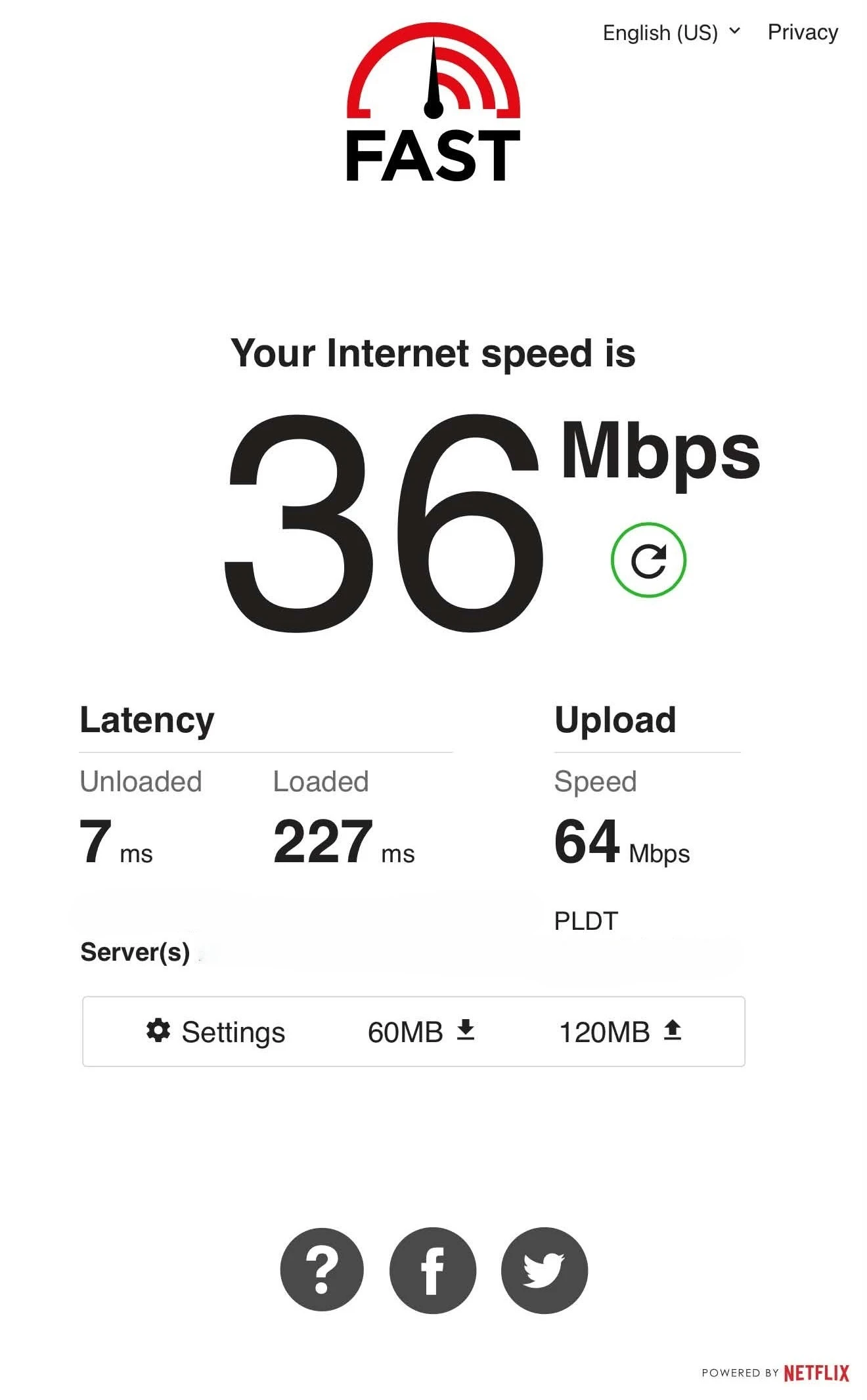
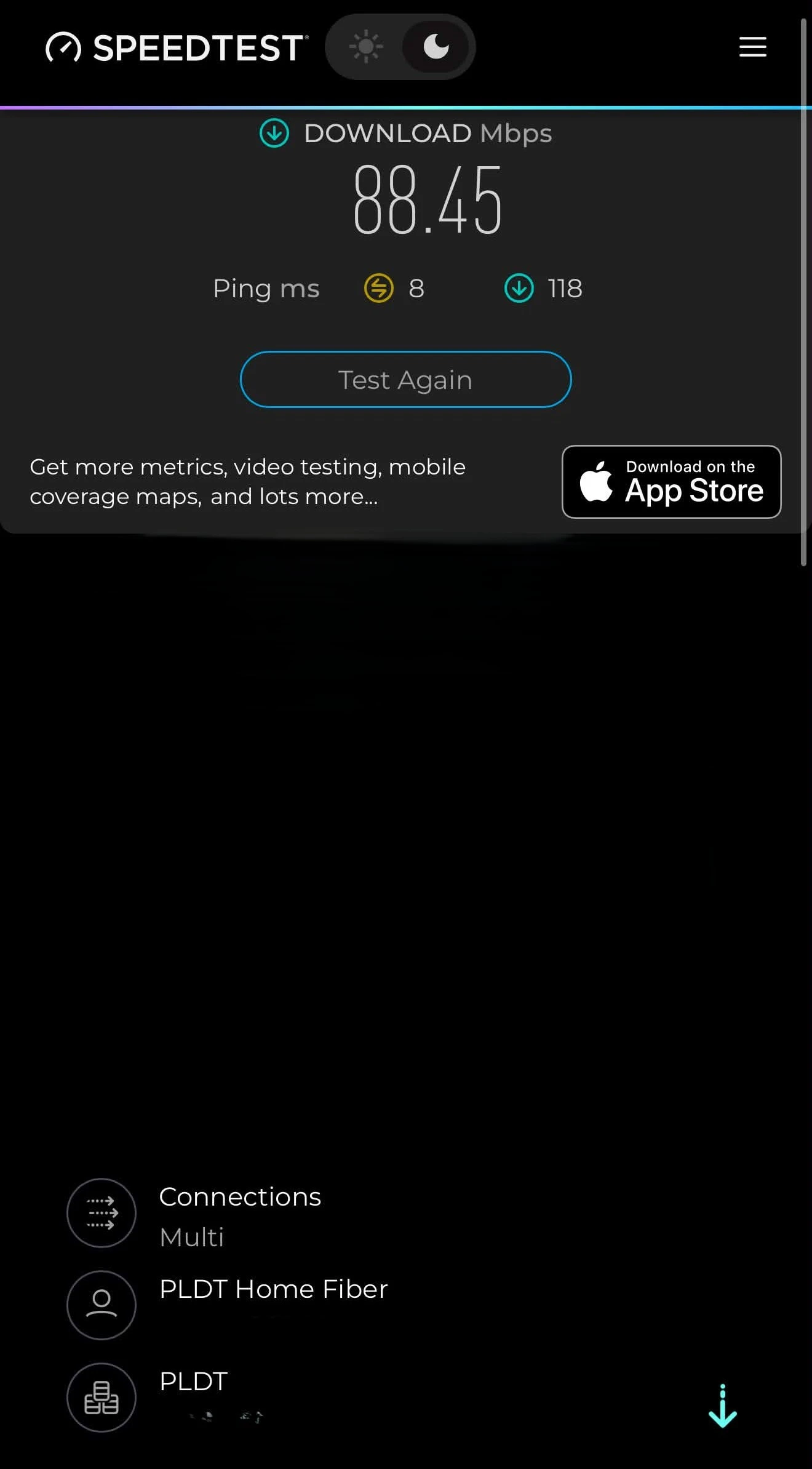
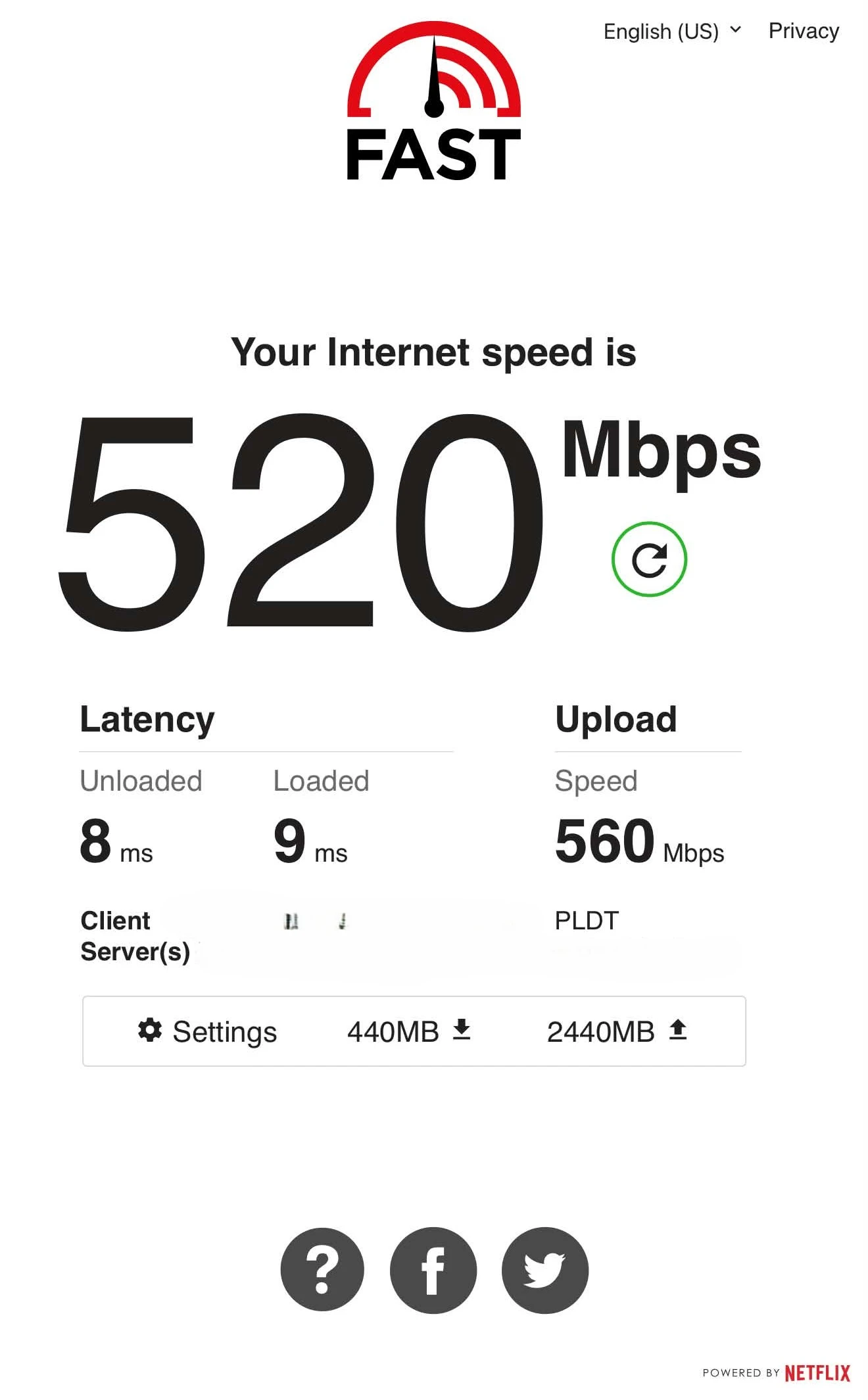
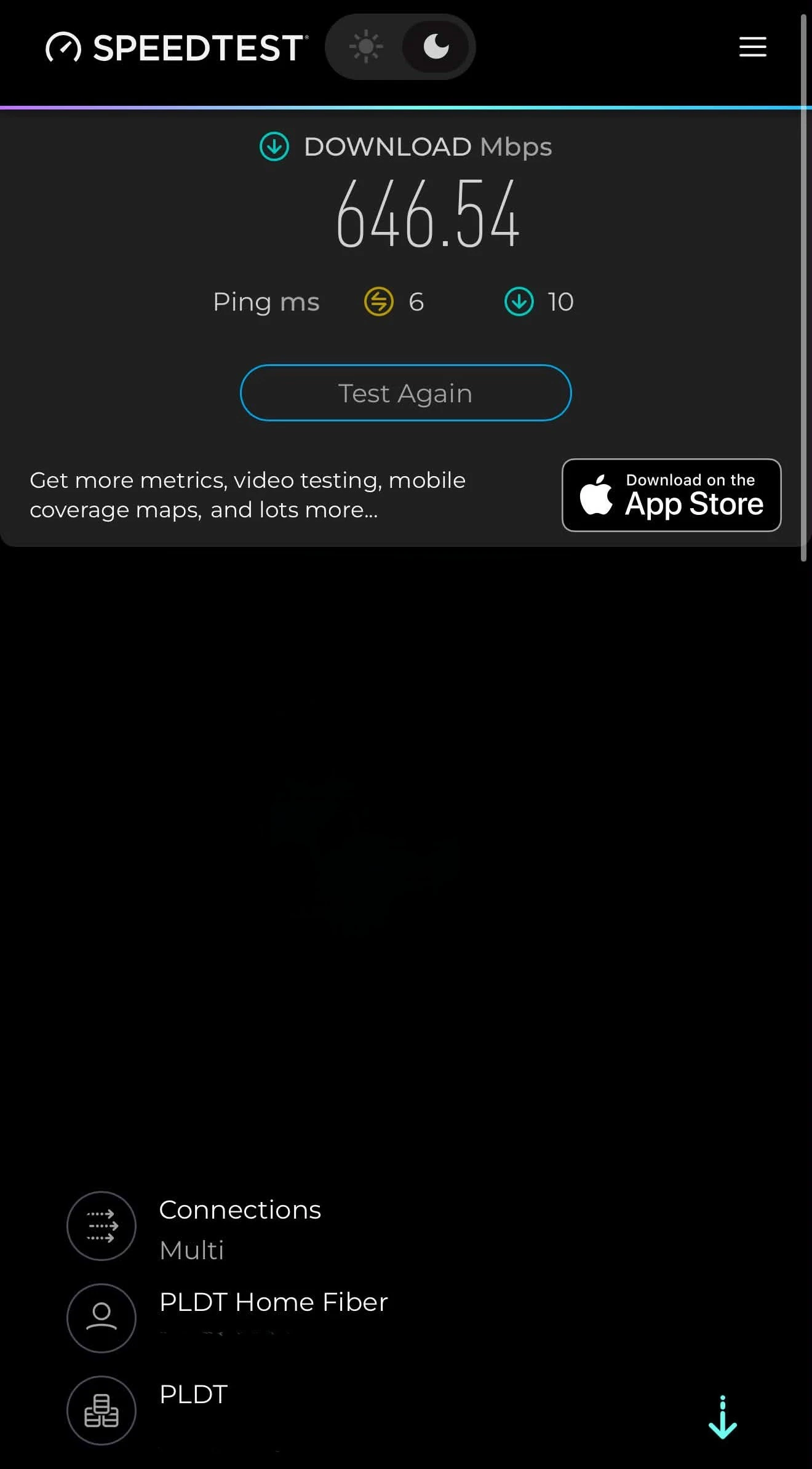
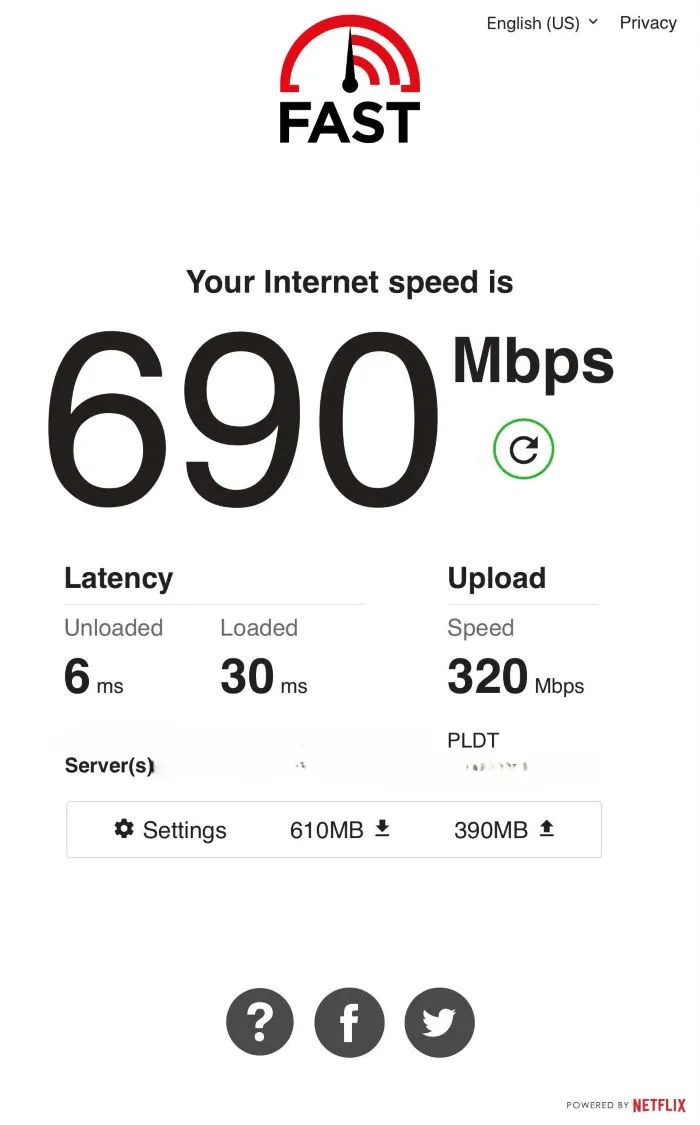
First, I recorded my WiFi speeds while connected to the ISP-provided modem/router, which had 2.5 GHz and 5 GHz bands. The 5 GHz band obviously has higher speeds, but its range is quite limited, so I ran all tests from about 1 meter away from the ISP-provided modem/router.
These are the results I had for both bands using two different speed test services.
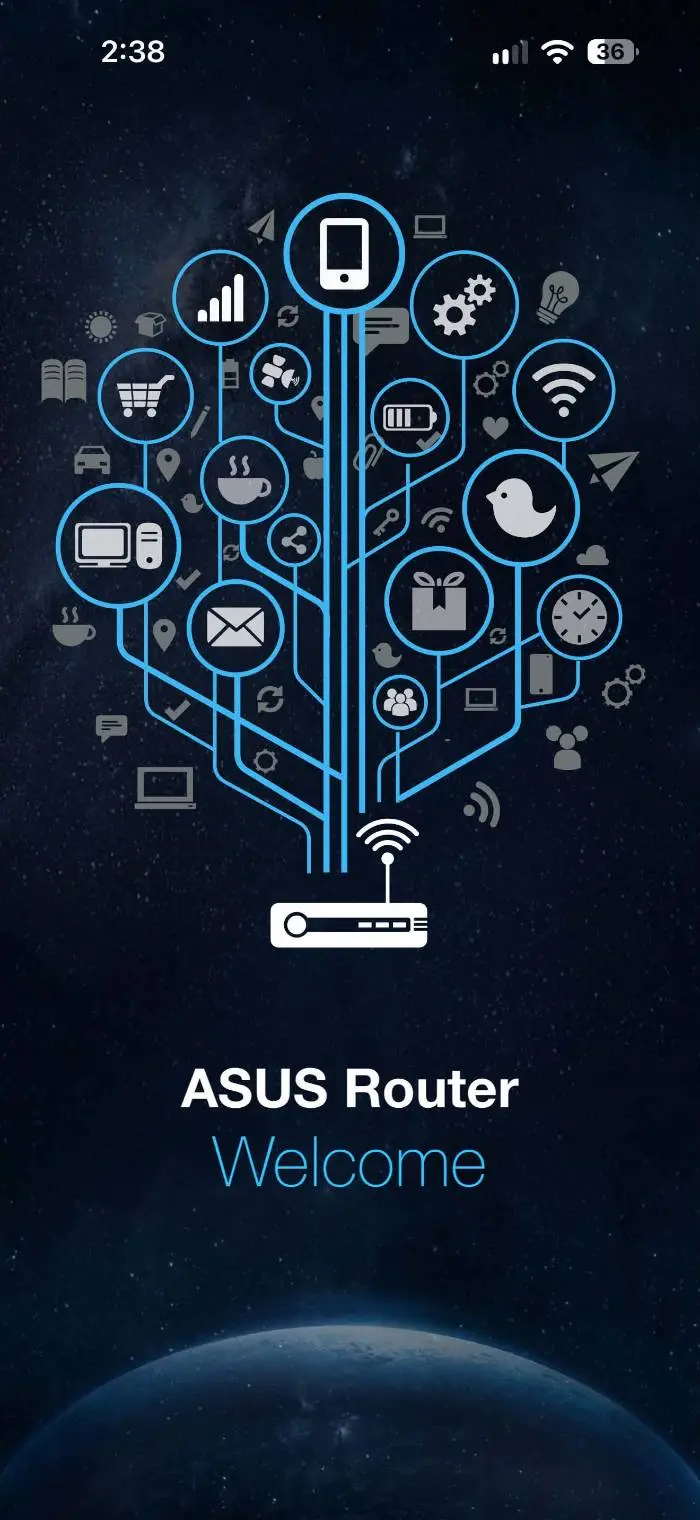
Before we get to the speed test results while connected to the ASUS RT-BE50 WiFi7 Router, I want to show you how easy it is to tinker with the router settings using only your mobile device. First, simply download the ASUS Router App via the iOS App Store or Google Play.
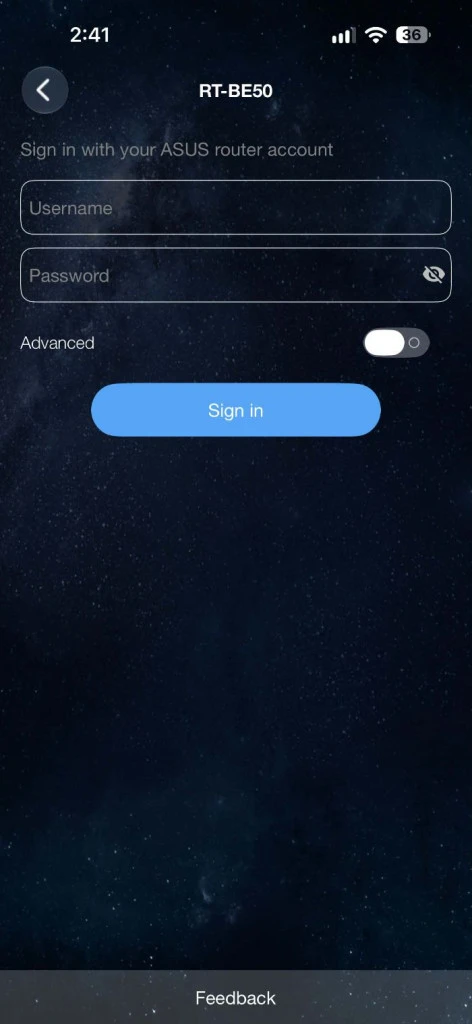
Next, as long as the router is turned on, the app will recognize it; all you need to do is enter the admin credentials to log in, which come with the package.
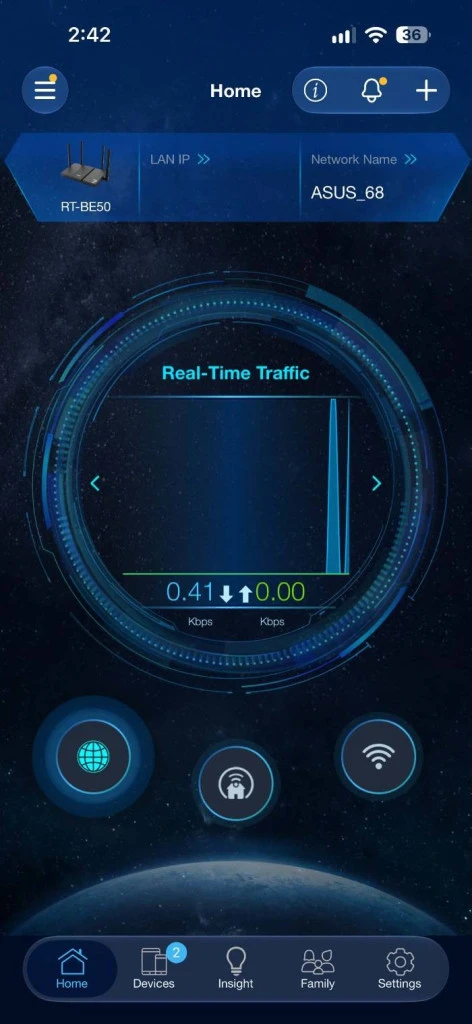
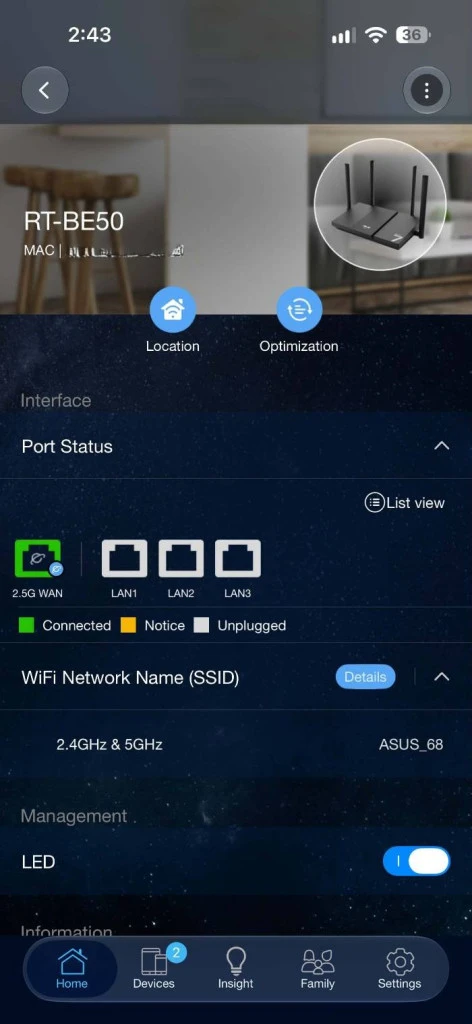
After you log in, you’ll see the home screen, which serves as your hub and displays useful information such as the network name, the LAN IP, internet usage, and more. It’s really simple, and you’re ready to customize your network in just a couple of minutes.
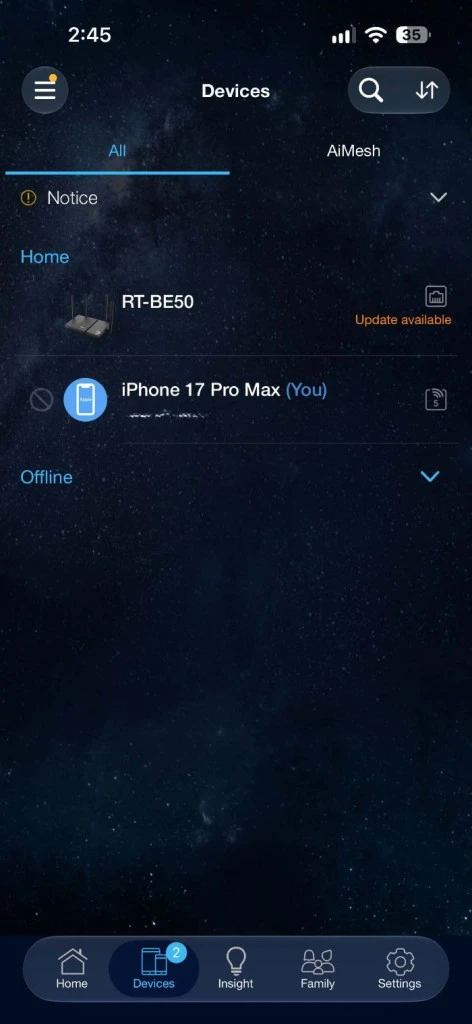
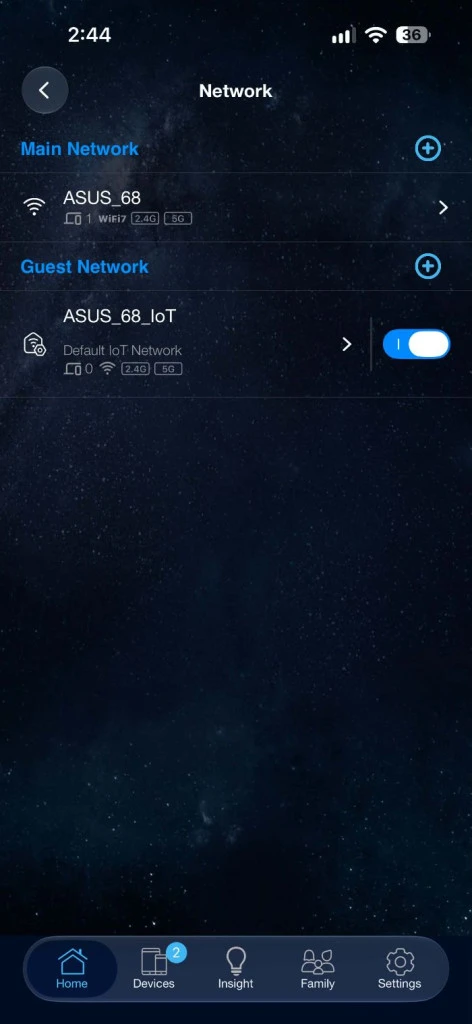
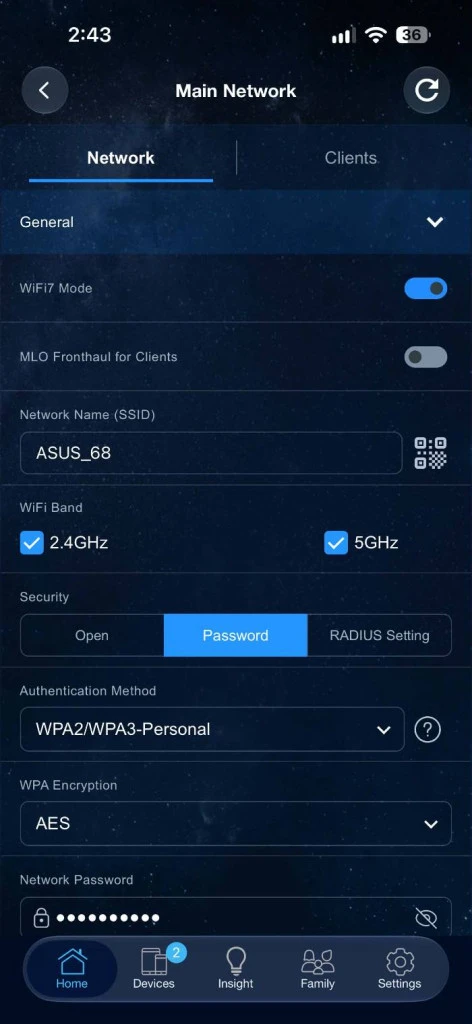
Going into the settings even further, you can see things like how many devices are connected to the router, a guest network that can be deactivated, the operational bands (2.5g/5g), how many ports are being used at the moment, and even other basic settings like changing the SSID of the network, updating the network password, and much more.
One thing I really appreciated about the ASUS Router app is that I didn’t take long to find what I was looking for because everything was labeled properly. It was my first time using the app, and I didn’t think it would be this easy to get familiar with it.
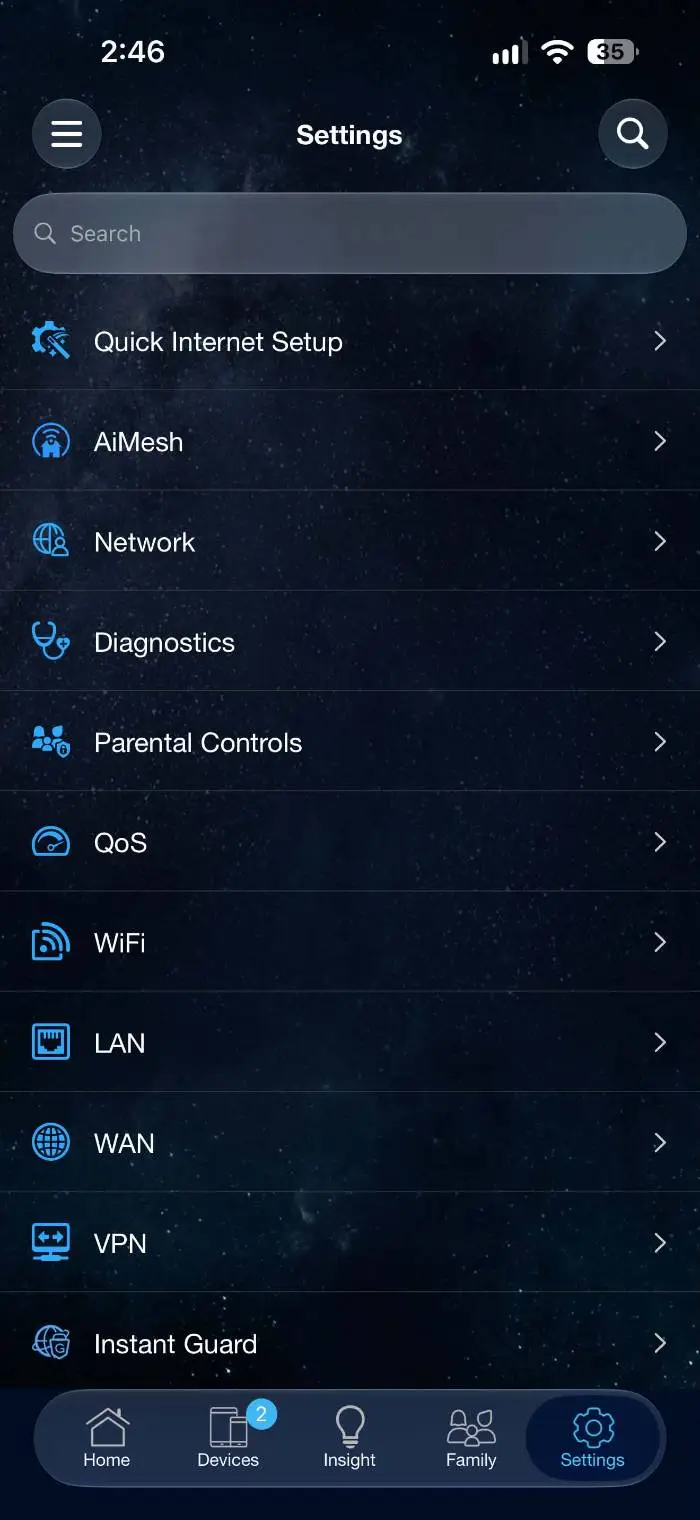
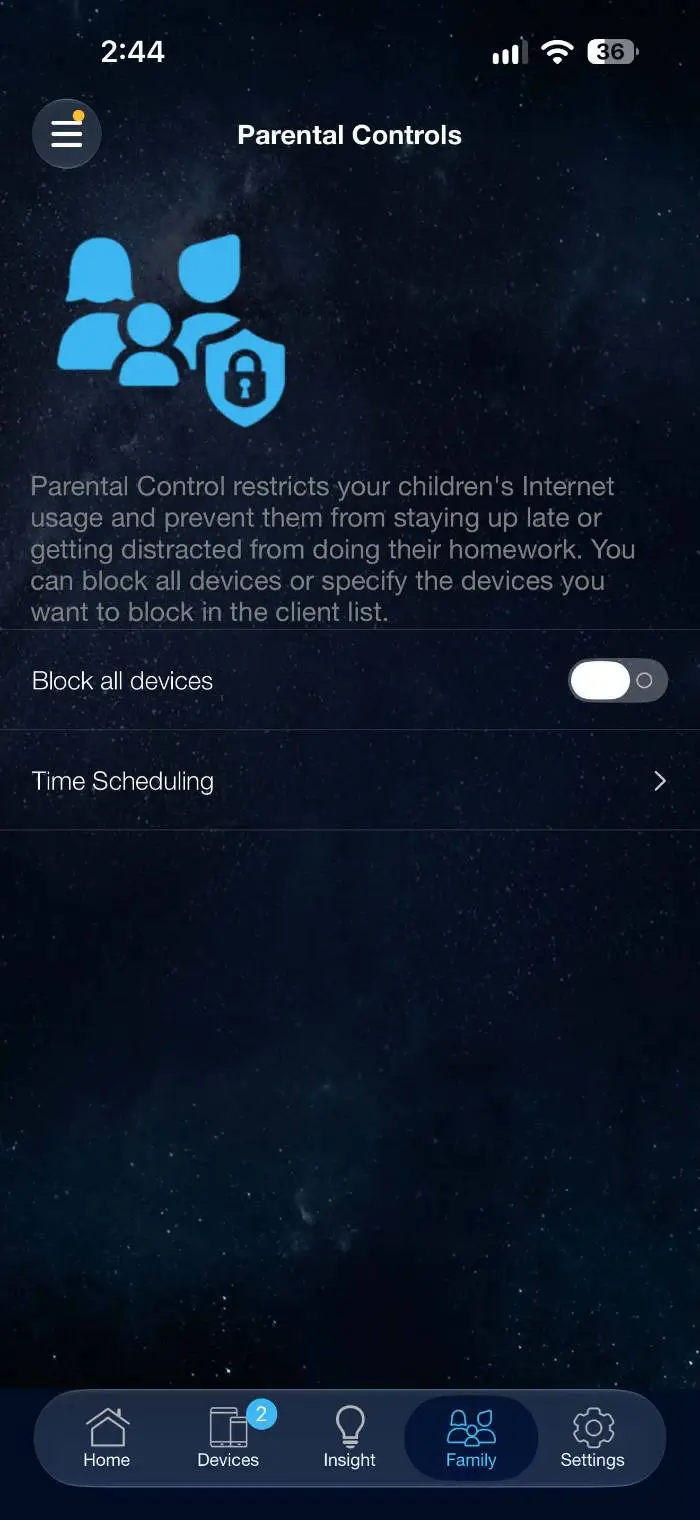
Over the past few weeks, a controversial topic came up about banning certain social media platforms. While child safety is important, good parenting is equally important. The ASUS Router app has a parental-controls menu that can detect a specific device used by a child, block it entirely, or set up a schedule that works for them. It’s a great way to monitor and control your kids’ usage, which most people these days don’t bother to do.
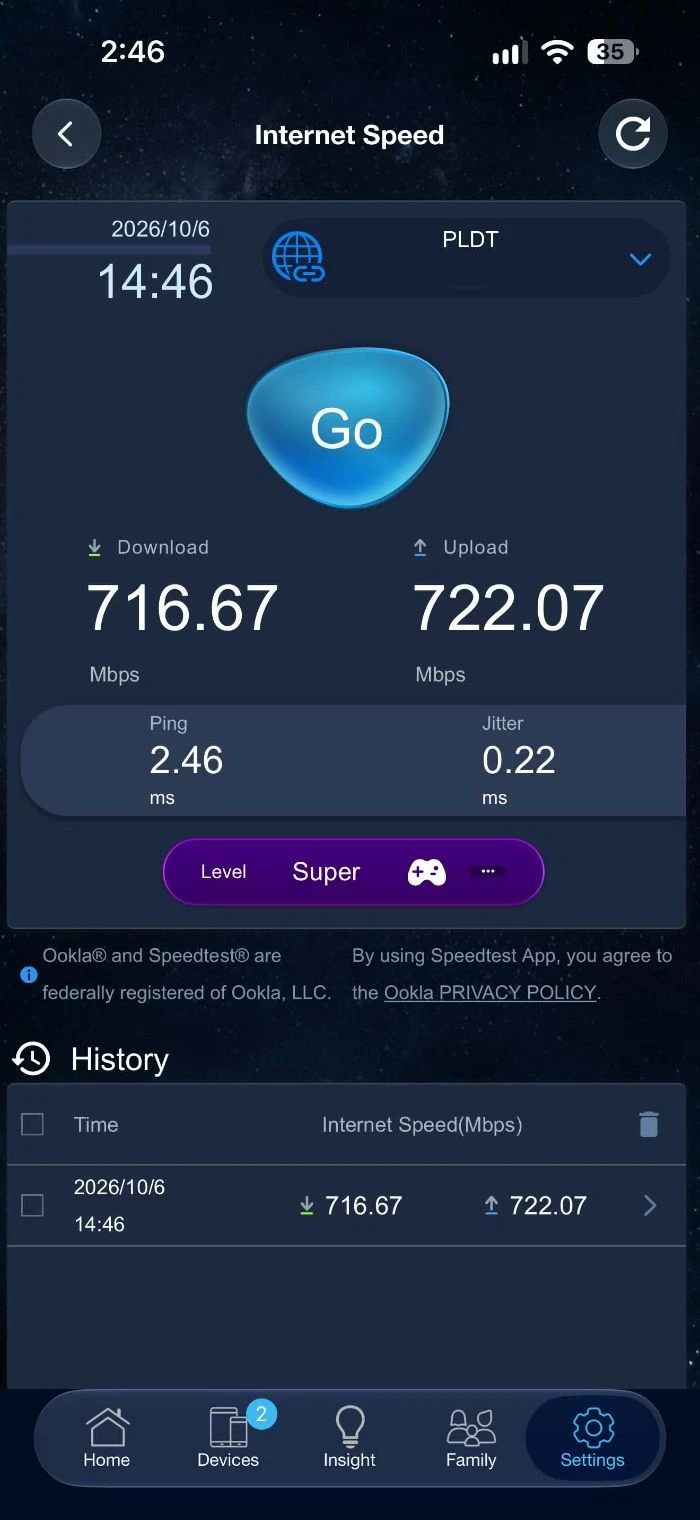
While still using the mobile device, the ASUS Router app has its own built-in speed test, but we also used an external speed test tool to get an average.
While connected to the ASUS RT-BE50 WiFi7 Router, both tests were much faster than previous tests while connected to the ISP-provided modem/router, reaching as high as 716Mbps download and 722Mbps upload, with minimal ping on the first test alone.
The ASUS RT-BE50 WiFi 7 Router strikes an excellent balance between affordability, ease of use, and performance, making it an ideal entry point for anyone looking to upgrade to the latest wireless standard without breaking the bank. With its simple setup process, intuitive mobile app, and noticeably faster speeds, it delivers tangible benefits for everyday productivity, media streaming, and gaming. More importantly, as more devices adopt WiFi 7, the RT-BE50 offers a cost-effective way to future-proof your home network today while delivering smoother connections, lower latency, and better overall performance right away.
The ASUS RT-BE50 WiFi7 Router is now available for PHP 4,220 at authorized ASUS dealers.
